


Davinci Resolve Titles
Davinci Resolve Time Tracker
Davinci Resolve Time Tracker
- Instant download
- Works with Free & Studio
Couldn't load pickup availability
 Get every pack & save
Megapack Bundle - All Packs SAVE $100
$187.99$87.99Save $100.00
View the bundle →
Get every pack & save
Megapack Bundle - All Packs SAVE $100
$187.99$87.99Save $100.00
View the bundle →
Know what every timeline actually cost you.
Time tracking and billing built for DaVinci Resolve. It tracks each timeline on its own, starts and stops by itself, and turns your edit into an invoice-ready breakdown. No account, no cloud, no spreadsheets.
Bill for the extras too — YouTube thumbnails, Insta360 reframing, uploading the finished video — logged right alongside your edit time on the same invoice.
Add to cart — $27.99One-time purchase, no subscription · Mac & Windows · Works with DaVinci Resolve Studio and the free version

The problem
You finish a job and try to remember how long it took. You guess and round it off. The two-round job that became six shows up nowhere on the invoice.
Most time trackers only know which app you had open. This one knows which timeline you were cutting.
How it works
Press Start, then just edit.
Every second it checks which project, timeline and page you're on in Resolve and logs the time to that timeline. Switch timelines and it switches with you.
After 5 minutes with no keyboard or mouse it pauses itself and takes those 5 minutes back off. Watching your cut back still counts as work — a moving playhead keeps the timer running.
It saves every 10 seconds. If your machine crashes, the unsaved time comes back when you reopen it.
Tracks each timeline
Time is logged against Resolve's own timeline ID, so renaming a timeline doesn't split its history.
Work outside Resolve counts too
360 reframing in Insta360, DJI or GoPro, thumbnails, descriptions, transcodes, AI-generated motion graphics. Log the time by hand or run a timer. It all goes on the same invoice.

Hourly, flat fee or per item
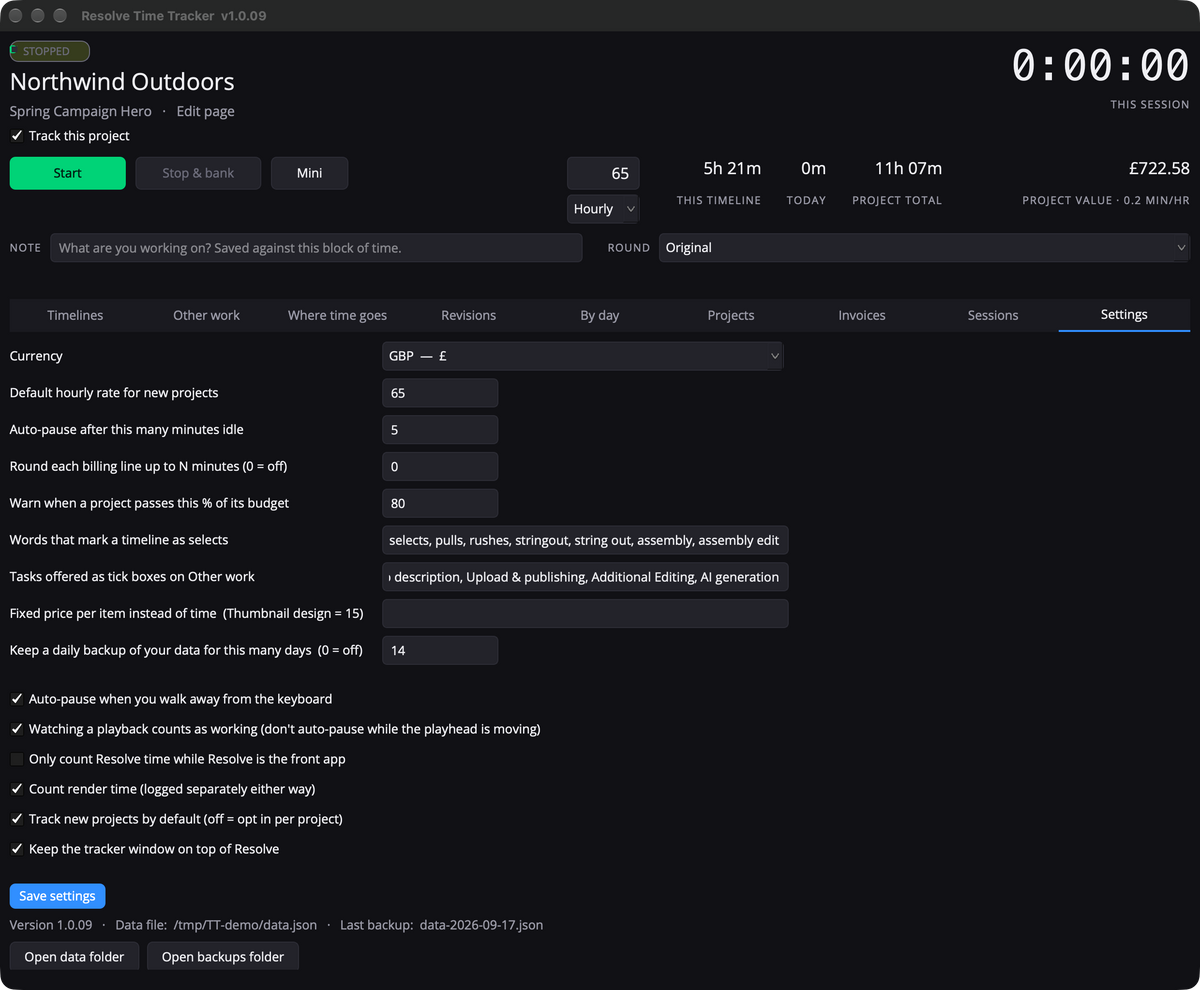
Charge £65/hr, £1,500 flat, or £15 per thumbnail — or mix them. On flat-fee jobs you see your live effective hourly rate, so you know the moment a fixed-price job starts losing you money.

Proof when revisions pile up
Tag each block as Original, Revision 1, 2, 3… and see exactly how much of the job was revisions.

Finished minutes per hour
It reads each timeline's runtime and tells you how many minutes of finished video you make per hour. That's the number you need to quote the next job.

Budgets and clients
Set budget hours per project and get a warning when you get close or go over. Group projects by client for per-client totals. Turn tracking off for personal projects.

Invoices that keep track of themselves
See what hasn't been invoiced yet and what it's worth. Enter your invoice number and mark the time as invoiced, and the next invoice only picks up new work. Mark invoices paid as the money lands and keep an eye on your running outstanding total. An invoice keeps the total it billed even if you edit a block afterwards, and flat-fee deposits and final invoices always add up to the fee.

Export anything
Every table exports to CSV or copies as a Markdown table. Round billing lines up to the nearest N minutes.

Stays out of your way
Two views: Mini is a small floating timer that sits over Resolve, even in full screen. Extended opens the full reports when you need them.

Mini view

Extended view
More under the hood
Selects fold into the main timeline
Spots timelines called Selects Moto Apex and matches them to Moto Apex, adding their hours to the main billing line without double-counting.
Old rates stay put
Each block of time keeps the rate you were charging when you worked it. Raise your rate today and last month's figures don't change.
Render time kept apart
Renders are detected and logged in their own bucket, or left out entirely.
Your data stays yours
All your data lives in one plain file on your own computer. No account, no cloud, nothing sent anywhere. Back up one file and you've backed up everything.
Studio or free Resolve
DaVinci Resolve Studio
Full tracking. Project, timeline, page, playhead and renders are all detected automatically.
Free DaVinci Resolve
Basic mode. Blackmagic removed scripting from the free version, so the tracker reads the project name from the window title and you pick the timeline yourself. Billing, reports and exports all work the same.
FAQ
Is this a subscription?
No. It's a one-time purchase of $27.99 — no recurring fees, no account needed.
Do I need DaVinci Resolve Studio?
No. It works with both. Studio gets full automatic tracking — project, timeline, page and renders detected on their own. The free version needs you to pick the timeline yourself, but billing, reports and exports all work the same either way.
Do I need to write any code or install anything extra?
No. The tracker is a single Lua file that runs through DaVinci Resolve's own built-in scripting engine — nothing extra to install, no code to touch. Drag one file into one folder and you're done.
What happens if my computer crashes or sleeps mid-session?
Time saves to disk every 10 seconds, so a crash costs you at most 10 seconds, not the session. It also pauses itself after 5 minutes of no keyboard or mouse activity, so idle time never gets billed by mistake.
Does time spent outside Resolve count?
Yes. Log it by hand or run a timer for 360 reframing, thumbnails, transcodes, descriptions or motion graphics done elsewhere, and it lands on the same invoice as your Resolve time.
Where does my data live?
On your own computer, in one plain file. No account, no cloud, nothing sent anywhere — back up that one file and you've backed up everything.
Install
The tracker is a single Lua file that runs through Resolve's own built-in scripting engine. No installer, no settings to change — just drop one file into one folder.
Quit DaVinci Resolve.
Drag Time Tracker.lua into Resolve's Scripts › Utility folder (paths below for Mac and Windows).
Start Resolve and open a project.
Choose Workspace › Scripts › Time Tracker and press Start. That's it — no settings to change in Resolve.
Full setup guide — Windows
1. Quit DaVinci Resolve.
2. Open Resolve's Scripts folder
Open File Explorer, click the address bar, paste this and press Enter:%APPDATA%\Blackmagic Design\DaVinci Resolve\Support\Fusion\Scripts\Utility
If it says the folder doesn't exist, go up to the "Scripts" folder and create a new folder inside it called Utility.
3. Drag Time Tracker.lua into that Utility folder.
4. Start tracking
Start Resolve, open a project, and choose Workspace › Scripts › Time Tracker. Press Start.
Full setup guide — Mac
1. Quit DaVinci Resolve.
2. Open Resolve's Scripts folder
In Finder choose Go › Go to Folder… (Shift‑Command‑G), paste this and press Return:~/Library/Application Support/Blackmagic Design/DaVinci Resolve/Fusion/Scripts/Utility
If it says the folder doesn't exist, go up to the "Scripts" folder and create a new folder inside it called Utility.
3. Drag Time Tracker.lua into that Utility folder.
4. Start tracking
Start Resolve, open a project, and choose Workspace › Scripts › Time Tracker. Press Start.
Using it & your data
The tracker counts while its window is open. Click "Mini" for a small chip that stays on top of Resolve. Closing the window banks your time.
Your time is saved in:
Mac: Documents/Resolve Time Tracker/data.json
Windows: Documents\Resolve Time Tracker\data.json
Back that file up with your projects — updates never touch it.
Updating
1. Close the Time Tracker window — your time is saved when it closes.
2. Drag the new Time Tracker.lua into the same Utility folder and choose Replace, then restart Resolve. The version number is in the tracker's window title.
Troubleshooting
Time Tracker isn't in the Scripts menu: make sure the file is directly inside the Utility folder, is named exactly "Time Tracker.lua", and restart Resolve.
Windows: the file is really "Time Tracker.lua.txt": in File Explorer turn on View › Show › File name extensions and remove ".txt".
Mac: can't see the Library folder: use Go › Go to Folder as above — Library is hidden, but that always works.
The window disappeared behind Resolve: choose Workspace › Scripts › Time Tracker again — it brings the open one forward.
Something went wrong: the tracker writes lua-errors.log next to data.json. Email that file with a note of what you clicked.
Stop guessing. Start billing what the edit really took.
Add to cart — $27.99Early release, built and supported by a solo dev — bug reports and feature requests welcome.



Davinci Resolve Time Tracker
$27.99
Why editors choose it
What's included
-
Instant download
Get your files immediately after checkout — no waiting.
-
Free & Studio
Works in both DaVinci Resolve Free and Studio.
-
Drag & drop
Drop straight onto your timeline — fully customisable.
-
No watermarks
Clean, ready-to-deliver titles and transitions.
-
Tutorials included
Follow along with step-by-step video guides.
-
Save hours
Professional results in minutes, not hours.
Any questions?
Download, install and use your pack instantly in a few clicks. We've recorded videos to help you find the answer you need — even if you're a complete beginner.
How to download the pack?
You'll get a direct link to download your pack after checkout — just click the "Download" button. We also email you the link so you can access it anytime, and it's saved to your account for future downloads.
How to install the pack?
Watch the quick install video above, or follow the step-by-step guide included with your download. It works the same in DaVinci Resolve Free and Studio.
What license comes with this pack?
Your purchase includes a license for use in your own personal and commercial projects. Reselling or redistributing the pack files is not permitted.
Loved by editors
What editors are saying
It really helps with making sure the videos will look good. I have already identified issues in old video designs and prevented future issues with the templates

It is very easy to install and excellent visual effects and new options at very low price, great job.

.
Brilliant little pack. Saves time, reduces mistakes, and makes my videos look polished.
Straightforward, effective, and professional. Exactly what vertical editors need.
Great tool for creators. No more guessing where captions or graphics should go.
Clean design and very practical. It’s now part of my standard editing setup.
I create content for multiple platforms and this keeps everything perfectly aligned every time.
Honestly, this has actually been one of the best experiences I have had buying something. There was a slight issue with one of the overlays. I emailed and BANG! I was contacted immediately and the issue was resolved. Jon went above and beyond to make sure everything was working. I cant recommend these guys and their product enough. Trust me, you won’t regret it.
Accurate safe zones and very easy to use. Makes Davinci Resolve even better for vertical video.
Perfect,, takes all the guess work out. Well worth the price and easy to install.
Dropped it straight into my timeline and it just works. Highly recommended for short-form creators.
I've tried three other packs. This is the only one I still use. Everything else felt either too basic or too complicated. This one hits the sweet spot.
Simple but powerful tool. Saves time and improves consistency across platforms.
I bought the megapack six months ago and it's had updates since. The creator is clearly still actively developing the packs. Long-term value is excellent.